Data Backup Methods: From Floppy Disks to the Cloud
Saving a file protects the work you have just done. Backing it up protects you when the original file, drive, or computer is lost, damaged, corrupted, or compromised.
Saving a File Is Not the Same as Backing It Up
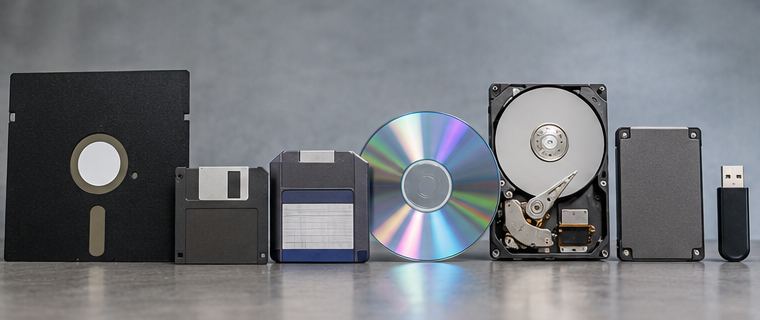
Computer users have always needed a way to protect work from unexpected loss. In the earliest personal-computer years, saving a document often meant copying it to a floppy disk or cassette. The user had to remember to save frequently and then make a separate copy if the information was important. If the only disk was damaged, misplaced, or overwritten, the file could be gone.
Saving and backing up solve different problems. Saving writes the current version of a file to its normal storage location. A backup creates another recoverable copy so that the information can be restored if the original is lost or damaged. A file saved only on the computer’s internal drive is still vulnerable to drive failure, theft, fire, accidental deletion, ransomware, and many other events.
This distinction matters even more today because computers hold far more valuable information than they once did. Family photos, financial records, business documents, customer information, creative projects, and years of email may exist only as digital files. A practical backup plan should be routine rather than something attempted after a failure.
The Floppy Disk Era: One Copy at a Time
In the early PC era, backing up important files often meant copying them to a second floppy disk. A user might keep a separate disk for documents, copy a program before making changes, or create a set of disks containing important files. With limited capacity, a large collection could require several disks and careful labeling.
The process was usually manual. Users needed to know which files had changed, insert the right disk, and wait for the copy operation to finish. It was easy to forget a file, overwrite a previous version, or discover that a disk could no longer be read. Floppy disks were portable, but they were not immune to magnetic damage, physical wear, dust, or accidental formatting.
As hard drives became common, the need for backup became more obvious. A computer might hold far more information than could fit on one floppy, so backup sets grew into multiple-disk routines or specialized software. Even so, the central habit remained: create a second copy before the first one fails.
Tape Backup: A Business Mainstay
Magnetic tape became an important backup medium, especially in business and institutional environments. Tape systems could store large amounts of data at a relatively low cost per unit of capacity and were suitable for scheduled backups and long-term archives. Automated tape libraries could load and manage multiple cartridges with limited human intervention.
Tape is sequential media, so locating a particular file can take longer than accessing a file on a disk. Backup software maintains catalogs and records so administrators can identify which tapes contain particular data. Rotation schedules—daily, weekly, monthly, or other patterns—help preserve multiple restore points rather than continually replacing the only backup.
Tape remains relevant for some archival and enterprise backup needs. It can be stored offline and physically separated from production systems, which can be valuable when defending against ransomware or network-wide incidents. The tradeoff is operational complexity: tapes must be labeled, stored, tracked, tested, and periodically migrated as equipment and formats change.
Removable Drives, Zip Disks, CDs, and DVDs
Removable cartridge systems offered more capacity than floppy disks in a convenient format. Iomega Zip drives became familiar in the 1990s, with early disks holding 100 MB. Jaz drives and other removable systems offered larger capacities. They were useful for moving large projects and making backups, but depended on specific drives and media that could become difficult to replace.
Writable CDs and DVDs offered a different option. They were relatively inexpensive and could be stored away from the computer. Some discs were write-once, which reduced the chance that later changes or malware would alter the recorded copy. Rewritable discs were more flexible but could be reused and overwritten. Optical media also had limitations: scratches, disc quality, aging, and the availability of compatible drives all affected long-term reliability.
These methods illustrate an important principle: the existence of a copy does not prove that it can be restored. Media can fail, formats can become obsolete, and backup sets can be incomplete. Periodic verification is part of a real backup process.
External Hard Drives and USB Storage
External hard drives made backup more accessible to home users and small businesses. A drive could connect through USB or another interface and hold far more data than removable disks. Backup software could copy selected folders or create full-system images on a schedule. The process became easier, but many users still had to remember to connect the drive or check that backups had completed.
USB flash drives offered convenience for transferring a handful of files or keeping an extra copy of documents. They are small, inexpensive, and easy to carry, but their portability also makes them easy to lose. They are not generally a substitute for a managed backup system, especially when the data changes frequently or needs multiple historical versions.
An external drive connected all the time can be exposed to some of the same events as the computer. Malware or ransomware may reach connected storage, and theft or fire can take both devices. Disconnecting a backup drive after a backup, using multiple drives in rotation, or maintaining an additional off-site copy can reduce those risks.
Network Backup and NAS Devices
Network-attached storage (NAS) provides shared storage to computers over a local network. A NAS can be used for centralized backups, shared folders, media libraries, and business file storage. Multiple drives may be configured with RAID or another redundancy scheme so that some drive failures do not immediately make the data unavailable.
RAID is not a backup. It can improve availability when a disk fails, but it does not protect against accidental deletion, ransomware, file corruption, theft, fire, or a user mistakenly overwriting information. If a damaged or encrypted file is written to a mirrored or replicated system, the unwanted change may be replicated too.
A NAS can be a valuable part of a backup plan when combined with versioning, restricted permissions, snapshots, and a separate off-site copy. Administrators should also keep the NAS software updated, protect administrative accounts, and test restoration rather than assuming that the device is working simply because it is powered on.
Cloud Storage, Synchronization, and Cloud Backup
Cloud storage makes it possible to keep copies of information in infrastructure operated by a service provider. Files can be accessed from different devices and locations, and many services offer automatic synchronization. Dedicated cloud-backup products can also preserve versions, schedule backups, and restore files or systems after a problem.
Synchronization and backup are not interchangeable. Synchronization is designed to keep locations consistent. If a user deletes a file, or ransomware encrypts files and the changes synchronize, the same change may appear elsewhere. Version history and retention features can help, but users need to understand how long previous versions are kept and how to restore them.
Cloud backup adds geographic separation, but it depends on account security, provider availability, network access, retention policies, and recurring costs. Strong multi-factor authentication, encryption, carefully limited access, and tested recovery procedures are important. For business data, it is also worth understanding where information is stored and whether the provider meets applicable contractual and regulatory requirements.
A Modern Backup Strategy: The 3-2-1 Principle
A widely used starting point is the 3-2-1 backup principle: keep at least three copies of important data, store them on at least two different types of media or systems, and keep at least one copy off-site. The goal is to avoid having every copy exposed to the same failure. For example, a business might keep production data, a local backup appliance, and an encrypted cloud backup.
For stronger protection, some organizations use an additional offline or immutable copy. Offline means the backup is disconnected when not in use. Immutable storage is designed to prevent alteration or deletion during a defined retention period. These approaches can make it harder for an attacker or compromised account to destroy every recovery point.
Backup frequency should reflect how much data an organization can afford to lose. A business that changes customer records every few minutes may need frequent backups or continuous data protection. A personal archive that changes weekly may need a different schedule. Recovery time also matters: how long can the organization operate without the system, and how quickly must it be restored?
The Most Important Step: Test the Restore
A backup is only useful if it can be restored. Test individual files, folders, databases, and complete systems according to the importance of the information. Confirm that credentials are available, encryption keys are recoverable, software dependencies can be installed, and the backup is not corrupted.
Document who is responsible for backups, how failures are reported, how long copies are retained, and how restoration is performed. Keep recovery instructions somewhere accessible even if the primary computer or network is unavailable. For critical systems, practice a recovery scenario rather than waiting for a real incident.
The history of backup technology—from copying floppy disks to automated cloud systems—shows that convenience has improved dramatically. But the fundamental responsibility has not changed. Important information needs more than one copy, those copies need to be protected from common failures, and recovery needs to be tested before it is urgently required.
References and Further Reading
Putting technology to work for your business
Understanding the technology behind the systems we use helps businesses make better decisions about websites, hosting, data, and online operations. Dyeware provides website development and managed hosting services.